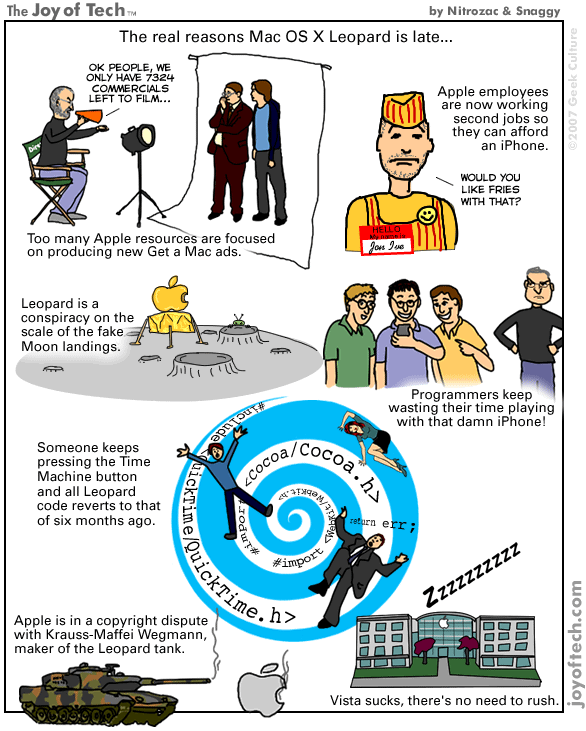
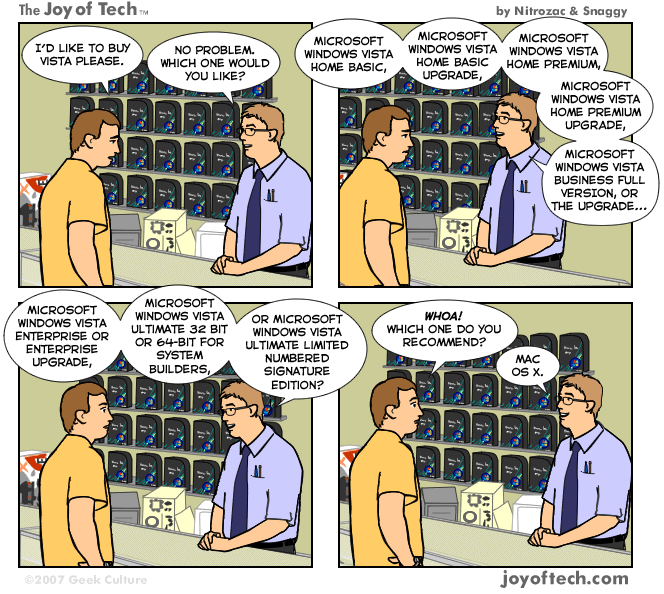
Converse: Snow

Folder.qlgenerator shows pretty good file list on Quick Look window. How do you think Quick Look view for "Folders" in Leopard? It's only huge folder icon image. Developper's SiteFolder Quick Look Plugin.
Check it out:
http://d.hatena.ne.jp/t_trace/20071124/p3
Adobe, in cooperation with Yahoo!, has announced the release of a preview of a free service that enables you to earn money by including ads in your PDF content. Ads for Adobe PDF is now available through Adobe Labs.
Read full article:
http://weblogs.macromedia.com/labs/archives/2007/11/ads_for_adobe_p.cfm
This paper was turned in by an Oakland High school student who received the highest honors at the school district’s Ebonics translation competition.
Assignment: Please translate the following Rap song lyrics from Ebonics to standard English.
Artist: Notorious B.I.G.
Album: Ready to Die
Song: One more chance (remix)
Lyrics:
First things first, I poppa, freaks all the honeys
Dummies - playboy bunnies, those wantin’ money
Those the ones I like ‘cause they don’t get nathan’
But penetration, unless it smells like sanitation
Garbage, I turn like doorknobs
Heart throb, never, black and ugly as ever
However, I stay coochied down to the socks
Rings and watch filled with rocks
Translation:
As a general rule, I perform deviant sexual acts with women of all kinds, including but not limited to those with limited intellect, nude magazine models, and prostitutes. I particularly enjoy sexual encounters with the latter group as they are generally disappointed in the fact that they only receive penile intercourse and nothing more, unless of course, they douche on a consistent basis. Although I am extremely unattractive, I am able to engage in these types of sexual acts with some regularity. Perhaps my sexuality is somehow related to my fancy and expensive jewelry.
Lyrics:
And my jam knock in the Mitsubishi
Girls pee pee when they see me, Nava-hoes creep me in they tee pee
As I lay down laws like I lay carpet
Stop it - if you think your gonna make a profit
Translation:
I enjoy playing my music loudly on my car stereo. Apparently, women enjoy this also because they become sexually aroused when they see me driving. Oddly enough, when I visit the Native American reservations, some of the more sexually promiscuous Indian women attempt to seduce me in their homes. Their intent is to divest me of my earnings. Such actions are unacceptable.
Lyrics:
Don’t see my ones, don’t see my guns - get it
Now tell ya friends Poppa hit it then split it
In two as I flow with the Junior Mafia
I don’t know what the hell’s stoppin’ ya
I’m clockin’ ya - Versace shades watchin’ ya
Once ya grin, I’m in game, begin
Translation:
Understand this fact: you can have neither my money, nor my weapons. I suggest that you inform your peers that we engaged in violent sexual acts. Currently, I am rapping with my associates, the Junior Mafia. I’m having some difficulty understanding why you refuse to approach me. I am attempting to make eye contact with you through my expensive glasses, and as soon as you respond with a smile, I will approach you.
Lyrics:
First I talk about how I dress and this
And diamond necklaces - stretch Lexuses
The sex is just immaculate from the back I get
Deeper and deeper - help ya reach the
Climax that your man can’t make
Call and tell him you’ll be home real late
Let’s sing the break
Translation:
I prefer to open the conversation with light banter about my wardrobe and jewelry, then I like to discuss my collection of expensive cars. This is more than enough to convince you to have sexual intercourse with me. I am able to insert my penis further into you when I enter you from behind. Furthermore, you will be able to reach orgasm. I understand this to be a problem with your current sexual partner. He needn’t be concerned about your whereabouts. Please phone him and inform him that you won’t be home for a while. By the way, please sing the chorus of the song for me also.
Lyrics:
She’s sick of that song on how it’s so long
Thought he worked his until I handled my biz
There I is - major pain like Damon Wayans
Low down dirty even like his brother Keenan
Schemin’ - don’t bring your girl ‘round me
True player for real, ask Puff Daddy
Translation:
Your current love interest no longer wishes to hear your fabrications about the length of your member. After I had sexual intercourse with your woman, she became enlightened as to the proper way it is supposed to be performed; violently and immorally. It would be in your best interest to keep your woman away from me as my sexual prowess is very strong. If you are unconvinced, ask Puff Daddy.
Lyrics:
You - ringin’ bells with bags from Chanel
Baby Benz, traded in your Hyundai Excel
Fully equipped, CD changer with the cell
She beeped me, meet me at twelve
Translation:
Despite the fact that you attempted to win her at her doorstep with bags full of expensive clothes and a car (the lower end model Mercedes Benz which you financed by signing over your current vehicle) containing an expensive stereo and a cellular phone, your woman has contacted me through my pager indicating that we should rendezvous at midnight.
Lyrics:
Where you at? Flippin’ jobs, playin’ car notes?
While I’m swimmin’ in ya women like the breast stroke
Right stroke, left stroke what’s the best stroke
Death stroke - tongue all down her throat
Nuthin’ left to do but send her home to you
I’m through - can ya sing the song for me, boo?
Translation:
You, on the other hand, jump from job to job, barely able to maintain payments on the Mercedes Benz you purchased for your woman. Meanwhile, I continue to engage in sexual intercourse and commit lewd osculatory acts with your women. My only remaining option is to request that she leave my home and return to you because I have reached orgasm and no longer have a need for her presence.
Lyrics:
So, what’s it gonna be? Him or me?
We can cruise the world with pearls
Gator boots for girls
The envy of all women, crushed linen
Cartier wrist-wear with diamonds in ‘em
The finest women I love with a passion
Ya man’s a wimp, I give that ass a good thrashin’
Translation:
The ultimate decision rests with you. Whom do you choose as your sexual partner. I can take you on cruises around the world. I will dress you in the finest jewelry and footwear. You will be envied by women worldwide in your fine clothes and jewelry. There is a special place in my heart for beautiful women. I will defeat your man in an altercation because he is effeminate.
Lyrics:
High fashion - flyin’ into all states.
Sexin’ me while your man masturbates.
Isn’t this great? Your flight leaves at eight.
Her flight lands at nine, my game just rewinds.
Lyrically I’m supposed to represent.
I’m not only the client, I’m the player president
Translation:
You will be dressed in finest clothes on the runways of Paris. I will fly you to every state to shop for fine clothes and jewelry. You will enjoy sexual intercourse with me and your man will be forced to pleasure himself through manual stimulation. What a life! I’ll return you to LaGuardia in time to catch your 8 o’clock flight. The timing is perfect because I have scheduled a date with a second woman who arrives at the same gate at 9 o’clock. I’ll seduce her in the same way that I seduced you. I rap well and I am a positive reflection of my home town. Not only am I a sexually deviant, misogynistic, immoral, wealthy, male prostitute, but I also sit on the board of directors of the organization that governs others of my kind.
Blogged with Flock
There’s been a welcome resurgence of interest in web typography over the past year or so, with many articles and conference talks offering techniques and theory. Frequently asserted is the notion that good typography requires accurate control of font size and line-height. But this is the web: it’s a special medium where the reader can have as much control as the designer—the implication being that text on the web, while bending to the designer’s will, must also be reliably resizable across browsers and platforms.
Read full article:
http://www.alistapart.com/articles/howtosizetextincss
This guest post was written by Dan Ackerman Greenberg, co-founder of viral video marketing company The Comotion Group and lead TA for the Stanford Facebook Class. Dan will graduate from the Stanford Management Science & Engineering Masters program in June.
Read full article:
http://www.techcrunch.com/2007/11/22/the-secret-strategies-behind-many-viral-videos
A great Flex engine that converts bitmap images to vector art - it's an online auto-tracer. Just upload your image and it will vectorize it for you.
Check it out:
http://vectormagic.stanford.edu
Data presentation can be both beautiful, elegant and descriptive. There is a variety of conventional ways to visualize data - tables, histograms, pie charts and bar graphs are being used every day, in every project and on every possible occasion. However, to convey a message to your readers effectively, sometimes you need more than just a simple pie chart of your results. In fact, there are much better, profound, creative and absolutely fascinating ways to visualize data. Many of them might become ubiquitous in the next few years.
So what can we expect? Which innovative ideas are already being used? And what are the most creative approaches to present data in ways we’ve never thought before?
Read full article:
http://www.smashingmagazine.com/2007/08/02/data-visualization-modern-approaches

Ever sometimes wish you could put someone's name in hell and damn then for eternity? Well, write in a name, and damn them! Go ahead, they can even get 'redemption' as well.
Check it out:
http://www.youaredamned.com
Using the paper cut idea, they have made a very creative and meaningful social campaign. By CCV, Centro de Valorização da Vida in Brazil.


Over the last few years, all of the major browsers have included support for a special set of 140 colors that are recognized by their color name within HTML or CSS code.
This means that rather than having to remember that the color orange is specified with the hex code “#FFA500″, you can simply type the word “orange” when specifying a color in your code and the browser will automatically translate it to its hex code.
Check them out:
http://www.colorschemer.com/blog/2007/07/24/140-named-colors
Now here’s an ingenious product: Sydney-based Smart Lid Systems has developed a coffee lid that uses color to let you know when it’s safe to drink your beverage.
If your drink is too hot, the normally-brown lid will turn bright red to warn you that you’re about to burn your mouth. And if it isn’t sealed properly on the top of cup, the lid shows spots of brown to indicate it’s loose.
McDonalds could have used this product a few years ago when they lost a lawsuit for $2.9 million (later reduced to $640,000) to a woman who burned herself and filed suit because her coffee was too hot. And I could have used this last week when I burned the roof of my mouth and couldn’t taste anything for 2 days.
We are all well aware that web design is not an easy task. There are many variables to consider, some of them technical, some of them human. The technical considerations of designing for the web can (and do) change quite regularly, but the human variables change at a slower rate. Sometimes the human variables change at such a slow rate that we have a hard time believing that it happens.
This is happening right now in web design. There is an astonishing amount of disbelief that the users of web pages have learned to scroll and that they do so regularly. Holding on to this disbelief – this myth that users won’t scroll to see anything below the fold – is doing everyone a great disservice, most of all our users.
Read full article:
http://www.boxesandarrows.com/view/blasting-the-myth-of
Information Architects have released their Web Trend Map for 2007, a subway map of the 200 most successful websites on the web, ordered by category, proximity, success, popularity and perspective. In theory it demonstrates the relationship between various sites and ideas, with a strong focus on Web 2.0. Click the image for a larger version or click here for the pdf version.
After watching a work colleague manually adding attachments to a Mail.app message, Martin Michel decided that there must be a better way.
And he made one. He has created Attaché, an AppleScript droplet that quickly creates an new email, with all the attachments dropped on it included and listed.
Just dump it on your Desktop (or wherever you like to keep droplets–in the Dock, perhaps). Select the files you want to send and drop them onto it.
Check it out:
http://www.hawkwings.net/2007/06/19/attache-droplet-for-quick-mailapp-attachment-lists
Don McMillan on most common mistakes people make while doing PowerPoint presentations. Next time make sure you will not do the same.
It’s not new to say that we now live in an age in which survival in business depends on your ability to communicate effectively through the internet. What is new is the realization that just having any old website isn’t enough. The quality of your site and the nature of its content are paramount and your ability to communicate with your audience is the key.
A good website is built on two basic truths—that the internet is an interactive medium and that the end user is in fact human. In other words, it is meant to be an experience. As with any adventure, a little strategic thought is needed to ensure that the experience is enjoyable.
Read full article:
http://www.alistapart.com/articles/humantohuman
IE NetRenderer allows you to check how a website is rendered by Internet Explorer 7, 6 or 5.5, as seen from a high speed datacenter located in Germany. Just type in a URL in the field above and try it out - it's free!
Check it out:
http://www.ipinfo.info/netrenderer
For millions of people, Google is an indispensable search tool that they use every day, in all facets of their lives. From work or school, research, to looking up movies and celebrities to news and gossip, Google is the go-to search engine.
Read full story:
http://www.dumblittleman.com/2007/06/20-tips-for-more-efficient-google.html
The concept of floats is probably one of the most unintuitive concepts in CSS. Floats are often misunderstood and blamed for floating all the context around it, causing readability and usability problems. However, the reason for these problems isn’t the theory itself, but the way the theory is interpreted - by developers and browsers.
Read full article:
http://www.smashingmagazine.com/2007/05/01/css-float-theory-things-you-should-know
CSS isn’t always easy to deal with. Depending on your skills and your experience, CSS coding can sometimes become a nightmare, particularly if you aren’t sure which selectors are actually being applied to document elements. An easy way to minimize the complexity of the code is as useful as not-so-well-known CSS attributes and properties you can use to create a semantically correct markup.
Read full article:
http://www.smashingmagazine.com/2007/05/10/70-expert-ideas-for-better-css-coding
1. Press Tab will hide tool bar and palette, Shift+Tab will hide only palette.
2. Hold Shift + click the top blue bar for toolbar and palette will move them to the nearest edge.
3. Double click the top blue bar, on any palette window, to minimize it.
4. Double click the gray background will bring up open file option, Hold Shift+double click will open up the browser.
5. Sick of the default gray background around your image? Select paint bucket, hold shift and click on the gray background, it will change to whatever color you have in your foreground color box.
6. In Photoshop, all "Cancel" buttons in a window can be changed to a "Reset" button by holding Alt.
7. Caps lock will switch your cursor for accuracy.
8. Press F button, it will switch between 3 different screen modes and give you more working area.
9. To draw a straight line, click then move to the end point and hold shift + click.
10. Hold Ctrl will temporary make any tool into move tool until you release Ctrl.
11. Ctrl + Alt and click drag the image, it will make a duplication of the current image over lay on top.
12. Hold Space bar, it will make any tool into "Hand Tool" until you release Space bar.
13. While in Zoom Tool, Ctrl+space = zoom in, alt+space = zoom out.
14. Hold Ctrl and press "+" or "-" it will change the % for image in navigator window.
15. When Using eyedropper tool to capture foreground color, hold Alt and click, it will instantly capture the color for background.
16. With Measure Tool, draw a line then hold Alt and draw another line from the end of the first line, it will measure the angle.
17. Ctrl+Alt+Z and Ctrl+Shift+Z will go back and forth in the history.
18. Alt+Backspace and Ctrl+Backspace will fill in the whole screen with foreground color or background color, Shift+backspace will bring up option window, Alt+Shift+Backspace and Ctrl+Shift+Backspace, will fill the image with foreground or background color but will leave the alpha transparent area alone.
19. When free transforming with Ctrl+T, hold Alt to keep the original image and then to transform a duplicated layer of it. Ctrl+Shift+T to repeat whatever you did in the last transform.
20. To make sure your Crop is on the edge of the image, hold Ctrl while cropping.
21. Ctrl+J will duplicate the current layer.
22. Ctrl+Shift+E will merge all visible layers to one layer, Ctrl+Shift+Alt+E will make a copy of the original and merge all visible layers.
23. While using Marquee Tools, hold Alt it will make the starting point as a center of the selection.
24. Ctrl + D to deselect, Ctrl+Shift+D to reselect what you deselected.
25. While selecting with Marquee tool, pressing the space bar can allow you to move the selection.
26. Hold Shift and press "+" or "-" it will switch between the layer mode:
N = Normal
I = Dissolve
M = Multiply
S = Screen
O = Overlay
F = Soft Light
H = Hard Light
D = Color Dodge
B = Color Burn
K = Darken
G = Lighten
E = Difference
X = Exclusion
U = Hue
T = Saturation
C = Color
Y = Luminosity
Q = Behind 1
L = Threshold 2
R = Clear 3
W = Shadow 4
V = Midtones 4
Z = Highlights 4
***The shortcut works even for following situation:
***Alpha turned off, Indexed Mode, Line tool, Bucket Tools, Dodge and Burn Tools
27. While using Brush or any other tools, change the opacity by typing the number.
*** type one number for % of it's ten times [4=40%]
***type two number for exact % [press 7 then 2 will get 72%]
28. Hold Alt while clicking on the eye icon beside the layer, it will hide all other layers.
29. Hold Alt while clicking the pen icon beside the layer, it will unchain this layer from all layers.
30. Select a layer, hold Alt and click the top edge of another layer, it will group them.
31. Hold Alt and click the button "Create a new layer", it will create a new adjustment layer.
32. Select a layer and hold Alt, then click on the garbage can button. It will instantly delete the layer, marquee where you want alpha and Ctrl+click the "Create new channel" button, it will create an alpha only on the area you marquee.
33. File> Automate > Contact Sheet: this can create a small thumbnail for every file, this can save you some time from searching.
34. When Move Tool is selected, toolbox on top can be useful from time to time, these are "Auto select layer" and "Show bounding box".
35. While Move Tool is selected, hold Shift (Alt+Shift+Right click) and allow whether or not to make a current layer chain with your upper layer.
36. With grid on, click the top left corner of the grid and drag to anywhere on the image to set the pivot, double clicking on the icon again reset the pivot.
37. After, draw a path on the image with pen tool, Ctrl+shift+H can hide/show it.
38. Control Navigator with keyboard sometimes can be more time efficient than mouse.
***
Home = move to top left corner
End = move to right bottom corner
PageUp = move up one page
PageDown = move down one page
Ctrl+PageUp = move left one page
Ctrl+PageDown = move right one page
Shift+PageUp = move up 10 pixel
Shift+PageDown = move down 10 pixel
Ctrl+Shift+PageUp = move left 10 pixel
Ctrl+Shift+PageDown = move right 10 pixel
39. Ctrl+Tab allows you to switch between different image files you are working on.
40. F12 = Revert to how the file was the last time you saved it.
41. Shortcuts for Channel: RGB, CMYK, indexed color...
***
Ctrl+"~" = RGB
Ctrl+1 = red
Ctrl+2 = green
Ctrl+3 = blue
Ctrl+4 = other path
Ctrl+9 = other path
Ctrl+"~" = CMYK
Ctrl+1 = light green
Ctrl+2 = pink red
Ctrl+3 = yellow
Ctrl+4 = black
Ctrl+5 = other path
Ctrl+9 = other path
Ctrl+1 = Indexed
Ctrl+2 = other path
Ctrl+9 = other path
42. hold Ctrl then you can draw a red box in the Navigator thumbnail for viewing.
43. Hold Alt and click on any of the history steps, that step will be copied and become the most recent one.
44. Alt drag a step from a serial action can copy it to another action.
45. Alt-click the flare preview thumb, and you can fill in numerical co-ordinates for lens flare.
46. Holding Shift + Alt while transforming an object will do it proportionally, from the center.
47. If you have the move tool selected and you want something duplicated just hold the alt key and move the image, holding the Shift + Alt while doing this, it will move it along one axis.
48. If you want to straighten an image that is crooked (maybe from scanning), click on the eyedropper tool or hit the I key 3 times to get the ruler. Click on the left side of the straight edge, then the right side of the straight (but crooked) edge. The choose Image> Rotate Canvas> Arbitrary, Photoshop will give you the degrees of rotation you just click ok.
49. If you create something in Illustrator, copy and paste it in Photoshop, it will ask you if you want this to be a pixel, path, or shape layer.
50. If you have a mask on a layer and you want to place a image in there and keep the mask. Simply open the image, say copy, and then Ctrl click on the layer to select the mask and use Shift + Ctrl + V to paste it into the mask which will also put it on a new layer as well.
51. To center an image, Ctrl + A , Ctrl + X, Ctrl + V, I think it also puts that image on a new layer.
52. Ctrl+E will merge the highlighted layer down to the next
53. When you have a brush selected, using [ or ] will scroll up or down that brush list.
54. Double clicking the zoom tool will make the image 100%, double clicking the hand tool will fit the image to your screen resolution.
55. Typing Content:
Ctrl + H will hide the highlight on your selected type.
If you click once while your type is selected on the font list, you can use your arrows to scroll up and down and see the fonts change on the fly!
Alt + Left or Right arrows will change your tracking in increments of 10
Ctrl + Alt + Left or Right arrows will change your tracking in increments of 100
Ctrl + Alt + Up or Down arrows will change your leading in increments of 10 pts
Shift + Ctrl with < or > will change your font size in increments of 2 pts
56. Ctrl + Alt + T to make a copy of the layer in which you want to transform.
57. Ctrl + Alt + Right arrow. duplicates the layer you are on.
58. Change the active layer : Alt + [ or ].
59. Move the active layer up and down : Ctrl + [ or ].
60. Link 2 layers: with move tool click in the first layer hold Shift and click in the second one.
61. Ctrl+[plus key] will let you zoom in on an image anytime while Ctrl+[minus key] zooms out. Ctrl+Alt+[plus key] will zoom in AND RESIZE the window to fit the image size... same for Ctrl+Alt+[minus key] as well.
62. When using the Polygonal Lasso Tool, click backspace to undo a lasso step.
63. Pressing X will switch the selected foreground and background colors.
64. Pressing D will reset the foreground and backgrounds colors to black and white.
65. If your image has multiple layers, create a Marquee selection and press Ctrl+Shift+Cit won't work if you selected a hidden layer) will copy the image into memory as if they were flattened! Paste it on a new document to see the result.
66. Ctrl+Alt+Z will do multiple undo, versus just one.
67. Ctrl+click a layer thumbnail to select the layer transparency
68. To see what your layer mask looks like (and edit it), Alt+click its thumbnail in the layers palette
69. Press and hold Ctrl+Alt and click the Help bar with your mouse, drag it down and highlight "About Photoshop" and let go of the left mouse button for a different About Photoshop splash/screen.
70. When using Polygon lasso tool hold Shift to make a perfect line, it goes every 30 degrees
71.Photoshop CS2: Group many layers by clicking the layers you want to group by clicking it while holding the Shift key down, and then press Ctrl+G to group them into a folder for means of better organization.
72. Ctrl+Shift+N creates a new layer with a dialog box; Ctrl+Shift+Alt+N gets you a new layer without the hassle.
73. Back to brush, [ and ] will increase/decrease your brush size, Shift + [ or ] will soften or harden your brush edge.
74. Still in [ and ], Ctrl + [ or ] will move your currently selected layer up and down the hierarchy and Shift + [ or ] will select upper layer or lower layer.
75. Stamp Tool (s) is used to copy an area of image (defined by alt+clicking and area) and paint it somewhere else (cloning). It also works when you have multiple images open at the same time. Alt click an area of any opened file image and paint it anywhere else.
76. After you created a text you can click on font type tab and tap "down" key over and over to scroll through the font list and see the changes in (relatively) real time. A feature that I am tired of waiting to happen in illustrator.
77. Still in text mode, a trick from Microsoft word to apply hi-light to your text hit Ctrl+Shift+ < or > to resize your text, to your preferred font size. Pressing Ctrl key while you are typing also gives you a free transform box temporarily and will go if you release it. Resizing text also works by pressing Ctrl+T (on selected layer, not when you are typing). It still retains as an editable text layer after.
78. And remember, pressing enter when you type will take you to a new line just like typing a letter but pressing Ctrl+Enter or Enter on numeric key will finish what you type.
79. You can drag a layer on to any other opened images in Photoshop and it will copy it as a layer (better than copy and paste image). Holding down Shift while moving it will snap the image right on the center of the other opened image
80. If you are working with sets....
Click on the set, in the blending mode it shows pass through by default... if you have an adjustment layer within a set and you want that adjustment layer to effect those layers underneath it within the set only, set the blending mode of the set to "normal" instead.
CODE
Mentioned before with more explanation:
- Pressed F to switch to 3 different viewing mode... when I first try it I said "wtf? what it's for?" Well, if you are sick of painting your image on the corners just to find yourself resizing your current image window, with F you can pan way outside your image. Happy corner painting!!
- Create a new file, 500x500 px, create a new layer, get a standard brush and paint a dot on the top center of your image (like the number 12 position on a clock). Press Ctrl+Alt+T, it will duplicate your original layer and free transform the new one. Move the pivot point (the circle with little dot in it found when you are free transforming something) to the center of your image, rotate your image 30 degrees to the right and hit OK to confirm the transform
now.........
Be excited..........
Hit Ctrl+Shift+Alt+T 10 times and see what happens!
81. When using the "move tool" you can select any layer by holding down the CTL key(CMD on a Mac) and clicking on the part of the layer on the canvas with your mouse. This way you won't have to go to the Layers palette every time and you don't have to keep checking on or off the auto select options for the move tool.
82. You can link up layers without going into the layers palette, by selecting the layer (how I just mentioned above) and holding down CTL + Shift(CMD + SHIT on a Mac) for each additional layer you want to link up. You can unlink them by clicking on the layer again.
83. You can delete more than one layer at a time.......by linking up all the layer you want to delete, and holding down CTL(CMD on a Mac) while you click on the garbage icon to delete the layer.
84. When using the type tool you can ok it by pressing CTL + Enter(CMD + Enter on a Mac) instead of clicking on the check mark on the options.
85. If you have more than one type layer, and want to make any of the following changes color/font/size/alignment/initializing to all of the type layers at the same time.....All you have to do is link up the type layer, hold down the Shift key and in the options for the type tool make your change i.e. color, size, etc.
86. You can use your number pad to change opacity for a layer.... I.e. type 5 and the opacity will be 50; type 55 and the opacity will be 55. You can use the number pad for any tool that uses opacity...like the airbrush tool, stamp tool, brush, gradient, etc.
87. Pressing Tab key will hide the Tools palette and any other palette that you have on the stage. Pressing "F" will change between Full Screen modes. Using these two tips you can view your work Full Screen without any palettes.(You can press CTL+Alt+0 to fit your work to the screen, or you can press CTL+0 to zoom to 100%)
88. Pressing the "+" and "-" keys while holding down CTL+Alt will resize the whole document window, not just the work area.
89. You can delete a layer by holding down the "Alt" key and pressing "L" twice......actually now with Photoshop 7 you got to press "L" three times. It's not actually a keyboard shortcut, but it's a quick way to do it....don't know if it works on a MAC.
90. Pan documents with the space bar.
91. Ctrl+click a layer (in layers palette) to select it's transparency.
92. Ctrl+Alt+click between 2 layers in the palette to group them.
93. Alt + click in “add layer mask” button to add a black layer mask (instead of a white one).
94. When you select something, pressing Ctrl+J will copy the selected area and add another layer with the copied area - opposing copying the layer, making a new layer, and pasting it.
95. To glue the palettes together (all palettes combined into one strip), you just drag & drop a palette onto the end of another palette (watch the rectangle that indicates where the palette will get attached to).
96. Hold down Alt while Burning to Dodge instead, and vice versa.
97. Ctrl-click a layer to select an objects; alternatively, you may select more than one object/s in more than 1 layer by holding Shift while using the method just mentioned (Ctrl-click). To deselect, just press Ctrl+D.
98. If you have a mini scroll on your mouse, you may use that to zoom in (scroll up) or zoom out (scroll down).
99. Need to locate a layer quick? Use the Move Tool (V) and right click on the area the object lays. There should now be a “cursor-menu” with all the layers that is in that particular area. Now take a good guess and see which one of them fits the shoe; select a layer and Ctrl-Click the layer in the Layer Palette - see if the selection traces the object you desired to edit/find. Useful for those messy people (i.e. me!).
100. Need to get rid of a background quick? Assuming you at least know how to crop around an object, do so. Now press Ctrl+I or Shift+Ctrl+I for Inverse Selection. Press Ctrl+X to %@#!* that part out, and you should be left with the object!
101. Want to save the time from loading All your Photoshop brushes, when your Photoshop accidentally forgets to load them up (happens to me sometimes)? Select the brush tool, and click the little arrow pointing right (located at the top toolbar), next to the Master Diameter tick. Go down to Preset Manager and now there should be a menu of all the brushes currently loaded. Click on the first brush (top left) and scroll down to the bottom. Now hold Shift and click the last brush (bottom right). This should highlight all the brushes. See the “Save Set” to the right in the menu? Click that and name your brush set whatever you want, for this matter I just name it All (so I remember that this brush set contains all the brushes I currently have loaded, and is located near the top when loading the brushes up).
A combination of Suckerfish, Hoverbox and Lightbox to provide you with this impressive tabbed image gallery.
More info and download files:
http://mondaybynoon.com/2006/03/27/suckerfish-hoverlightbox
Highslide JS is a piece of JavaScript that streamlines the use of thumbnail images on web pages. The library offers these features and advantages:
Using mootools v1.0, this javascript gallery and slideshow system allows you to have simple and smooth (cross-fading…) image galleries, slideshows, showcases and other cool stuff on your website.
Check it out:
http://smoothgallery.jondesign.net/getting-started
FrogJS is a simple, unobtrusive javascript gallery. It is not a replacement for other thumbnail galleries such as Lightbox JS, but rather a different way of showing galleries. This type of gallery is best used in photo stories and other places where a page-by-page gallery would normally be used. Above is a small example of a FrogJS gallery. Just click the parrot thumbnail to scroll through the gallery.
Read full article and download files:
http://www.puidokas.com/portfolio/frogjs
So many of the creatives in our community have chosen the free-wheeling, tight-rope act that is freelance life. I stumbled upon this list of 101 resources for freelancers. (Many of these are familiar tools, but there are a few hidden gems as well.) The list covers everything from timing tools to forms and legal to creativity tools. It's aimed mostly at designers, but I think everyone would benefit from a peak at the list.
Read full article:
http://freelanceswitch.com/general/101-essential-freelancing-resources
You either love Javascript or you hate it. Either way it can provide great functionality that users love. And it doesn’t have to affect usability. Here are top 15 Javascript snippits for making great sites that bit extra special.
Read full article:
http://www.webcodr.com/6/15-javascript-snippets-you-cant-live-without
Gradients are one of the most important aspect to be considered while designing a Web 2.0 Site. Even a simple button is of a gradient. Check out this cool set of Gradients packaged as Adobe Photoshop Gradient file (.grd).
Download Adobe Photoshop Gradient:
http://www.dezinerfolio.com/wp-content/uploads/2007/03/web20_gradients.zip
Simple stripes on the Site Header has also got its place in the Web 2.0 Trend. This concept of repeating a pattern looks pleasing and doesn’t even increase file size. Here you will learn how to create simple headers like the below example.
Read full article:
http://www.dezinerfolio.com/2007/03/24/creating-seamless-web-20-stripe-site-headers
One of the coolest stuff I have been waiting for. Simply choose an image and the site will generate a High Resolution Image Mosaic…
Check it out:
http://imagemosaicgenerator.click42.com
Every now and then, your Mac begins to feel a little sluggish. Here are 11 ways to optimize it and get the ultimate performance.
Read full article:
http://lowendmac.com/eubanks/07/0312.html
VisualDNA is an interesting test about your personality through selection from images of what you define as art, beauty, love, etc.
Check it out:
http://a.imagini.net/friends
Top ten tips to work more productively:
1. Switch off your email
2. Ruthless prioritisation
3. JFDI
4. Make time to rest
5. Keep people informed
6. Make contingency time
7. Secure yourself
8. Your environment
9. Your computer
10. Manage your body
Read full article:
http://www.webdesignfromscratch.com/ten-productivity-tips.cfm
So, here are 6 tools that I find to actually be useful. A few of these apply to web design as a whole, while others are more mac related.
Check it out:
http://theappleblog.com/2007/02/27/6-tools-for-web-design
The amount of new web applications, features, and companies sprouting up is just astounding, and while some like to characterize "Web 2.0" design as involving lots of cliché diagonal lines and shadows it still takes a lot of skill to execute an attractive user interface.
Read full article:
http://businesslogs.com/design_and_usability/the_webs_best_interface_design.php
Ever wonder how these guys draw their Web 2.0 Logos? Sometimes its nice to learn from others, build up the basic skills and start your own creativity from there. In this Photoshop tutorial, I’m going to reveal you some of the nice Web 2.0 logos, how you can draw their logo exactly the same (well, not really 100% though) with Photoshop.
Read full article:
http://www.hongkiat.com/blog/revealing-methods-of-drawing-web-20-logos
As everyone knows, it is possible to get quite a speed boost out of Mail.app by stripping all the bloat out of its Envelope index, an SQLite database Mail uses to store senders, recipients, subjects and so on.
Check it out:
http://www.hawkwings.net/2007/03/01/a-faster-way-to-speed-up-mailapp
Here is another windows prank I found on Digg that will leave people stunned when they return to their work station. It's called "Blue Screen of Death Simulation Prank".
It's really quick to load up. It goes like this:
1) Press WIN+R
2) Type: cmd + enter (this will take you to "DOS")
3) Next type: color 1f (this gives the nice blue screen of death color code)
4) Double click the black-DOS-like icon on the top left of the window
5) Select "full screen mode" and be prepared to enter a 1980's style interface!
This is where the fun starts! Welcome to the 80's. Next:
6) Type: debug+enter
7) type: u + enter (this will display some "unassembled" memory code)
8) do that 2 more times (u + enter) to dump some more memory to the screen.
9) next type r + enter (that will dump some registry settings on the screen)
10) next press enter a couple of times to generate some blank lines
11) Finally... type a scary warning message. I often go with this:
"WARNING: A critical error has occured. To attemp recovery, press ENTER now."
Of course when they press enter, debug returns a real error-message, because it does not recognize that command!
Now just sit back and enjoy their shock when they return to their work station. I like to do this to the prettiest of ladies in the office so they call me for help. The solution to back out of this screen is only 2 quick steps:
a) type: Q + enter (this closes debug)
b) type: exit + enter (this exits "dos" and returns to windows) and voila! problem solved.
When my prank victims call me to their desk for help, I simply walk over and say,
- Me: "Hmmm.... Sally. Looks like you got a critical error there. What did you do?"
- Hot office girl: "Ummm nothing. I don't know. Ghosh, I just came back to my desk and it was like that."
- Me: "Well, I see here at memory address #xxxxx that... oh yes... wait... I think I can fix this for you."
- Hot office girl: "really?"
- Me: "Yup. Let me see here...."
With just a cuople of key strokes, Windows-XP returns, and I then walk away like a cowboy who rides off into the sunset. That last part is important: you have to just walk away immediately (rather than linger at her desk) to create that last touch of mystique. If she's single she'll be impressed and might even flirt with you afterwards.
Wonder why YouTube skyrocketed in popularity in less than two years? One obvious reason is that the video-sharing Web site has kept it simple. YouTube doesn't require a video player download or a special account just to watch a video. With just a click on a link, a video is up and running in a few seconds. It's a people-friendly design, and that attention to simplicity has paid off.
Read full article:
http://news.com.com/2100-1008_3-6158224.html?part=rss&tag=2547-1_3-0-5&subj=news
Over at iPodwizard they have discovered how to add a background to your iPod using the Apple Firmware.
Check it out:
http://www.ipodwizard.net/showthread.php?t=19031
We all know and use Google, Yahoo, Microsoft, and Ask. But here's a list of 100 more that add their own unique slants to organizing the Web for you. You might find one or a few that improve your search life.
Read full article:
http://www.readwriteweb.com/archives/top_100_alternative_search_engines.php
The game designers across the nation are playing is; can they design a logo and get it approved without the client realising it's a big spurting penis? Here's the ones that were approved.
Read full article:
http://www.b3ta.com/features/phalliclogoawards
Finding freeware apps that don’t end up just sitting on your hard drive can get pretty hard. This list is a collection of some essential freeware apps for OS X that I can honestly say I would pay for if they weren’t already free. If you’re a new Mac user and/or you haven’t tried these apps yet, I highly suggest you give each of them a spin.
Check them out:
http://jakejarvis.com/archives/2007/01/27/10-free-apps-every-mac-user-should-have
A Digg-like site where people submit stories about companies acting in ways that can be considered “good” or “bad.” Other users then vote on the goodness or badness of those actions, add comments, etc. An overall “goodness” score, ranging from “severe” on the negative end to “pioneer” on the positive end is calculated and displayed.
Check it out:
http://www.dotherightthing.com

Ryan Hicks answers Veerle's questions about designing Adobe's new icon set, the scope of which has expanded enormously since their acquistion of Macromedia.
Read full article:
http://www.brandspankingnew.net/archive/2007/01/adobe_cs3_icons.html
One can discuss whether numerous CSS-galleries challenge our creativity, however they can serve as a quite nice source for inspiration. The galleries of CSS-based designs showcase exemplary design practices, solutions, ideas and templates. Once you have no idea what you should do next with your web-site, it’s worth taking a look at some beautiful works.
Check it out:
http://www.smashingmagazine.com/2006/12/21/creme-de-la-creme-of-css-list-of-css-galleries
Sometimes we just don’t know what color to use. Sometimes we have no idea which colors to combine in order to create a beautiful color palette which would attract the visitors of our web-sites. That’s why we’ve decided to create some kind of visual reference cards or cheat sheets for the most popular colors.
Read full article:
http://www.smashingmagazine.com/2006/12/29/css-based-tables-modern-solutions
If you are a graphic designer, you probably know that textures and background images are essential for every project which is related to graphics or design. But where to search for quality images if you can’t find anything usable on your PC?
Read full article:
http://www.smashingmagazine.com/2007/01/02/where-can-i-find-textures-and-background-images
As a web-developer you don’t have to re-invent the wheel all the time. If it just has to work, and has to be valid, and has to have a nice, visually appealing design hierarchy, you just can use css-techniques developed in the web-dev-community over the last few years. If you take a look around, you’ll find many templates, which include basic (X)HTML/CSS-markup.
Check them out:
http://www.smashingmagazine.com/2007/01/12/free-css-layouts-and-templates
Adobe Photoshop is a powerful tool for designing various visual elements one can use for web-pages. However, sometimes it’s important to know what to do in order to achieve some effects. In such cases, step-by-step tutorials can provide help and save a lot of time you would have to spend on finding a solution otherwise. Let’s take a look at some of the best Adobe Photoshop tutorials we’ve found in the Web so far.
Check them out:
http://www.smashingmagazine.com/2007/01/12/hand-picked-photoshop-tutorials
Every designer faces a choice at some point in their career — to manage or not to manage. Erin Malone helps you walk through the questions you need to make that choice.
Read full article:
http://www.boxesandarrows.com/view/so-you-think-you
Using this poem generator you can easily make the most beautiful love or Valentine poems.
Check it out:
http://www.dotsphinx.com/love.en/poems
The term web standards can mean different things to different people. For some, it is 'table-free sites', for others it is 'using valid code'. However, web standards are much broader than that. A site built to web standards should adhere to standards (HTML, XHTML, XML, CSS, XSLT, DOM, MathML, SVG etc) and pursue best practices (valid code, accessible code, semantically correct code, user-friendly URLs etc).
Read full article:
http://www.maxdesign.com.au/presentation/checklist.htm
So you think you know all about whitespace. You may be surprised. Mark Boulton, type expert to the stars, shows how micro and macro whitespace push brands upscale (or down) and enhance legibility in print and online.
Read full article:
http://www.alistapart.com/articles/whitespace